Manual Cross Browsing live
Introducing Cross Browsing Live,
which enables manual QA to verify web applications across different browser types and platforms.

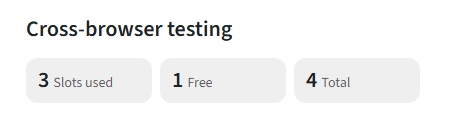
You can view the number of slots used, available, and the total slots allocated to your account.
Note: These numbers depend on your subscription plan.
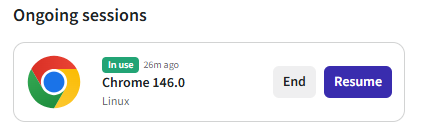
If there are ongoing sessions, a special window will appear. In this window, you will see details such as:
- Browser: For example, Chrome
- Browser Version: For example, 146.0
- Platform: For example, Linux
- Timer: Displays the duration of the session
Please refer to the screenshot below for a visual example.
How to Start a Cross Browsing Live Session
To begins using Cross Browsing Live, please follow these steps:
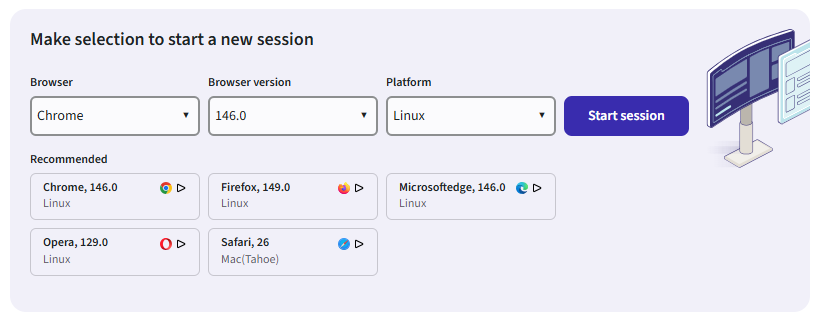
- Select the necessary requirements from the menu:
- Browser: Choose your preferred browser (e.g., Chrome, Firefox, Microsoft Edge, Opera, Safari).
- Browser Version: Select the desired browser version (e.g., 146.0, 149.0, 129.0, 26).
- Platform: Choose the platform you want to test on (e.g., Linux, Mac).
2. Start a new session:
- After making your selections, click the Start session button.
3. Recommended Configurations:
- You can also choose from the recommended browser and platform combinations listed below the selection menu for quick access.
Make selection to start a new interface (screenshot shown above)
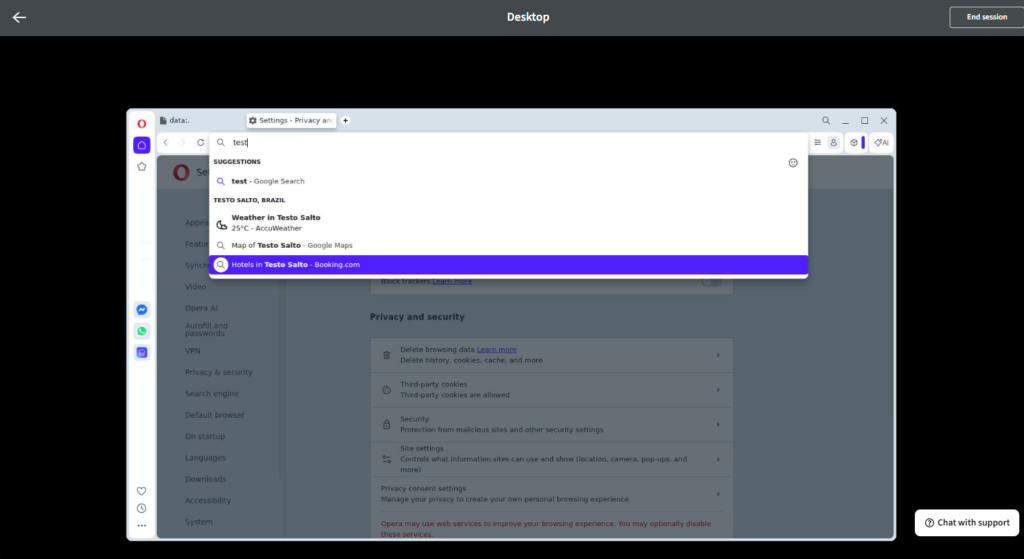
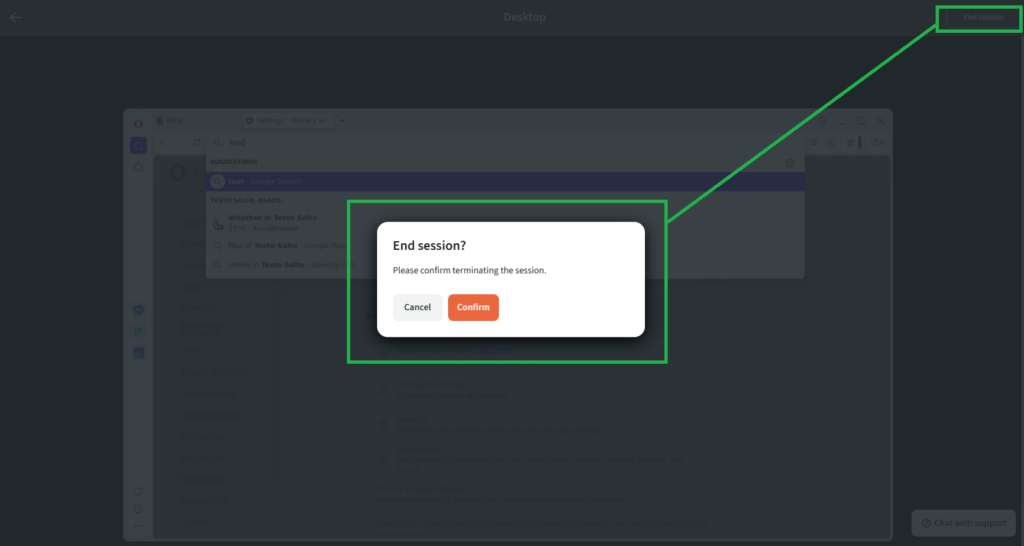
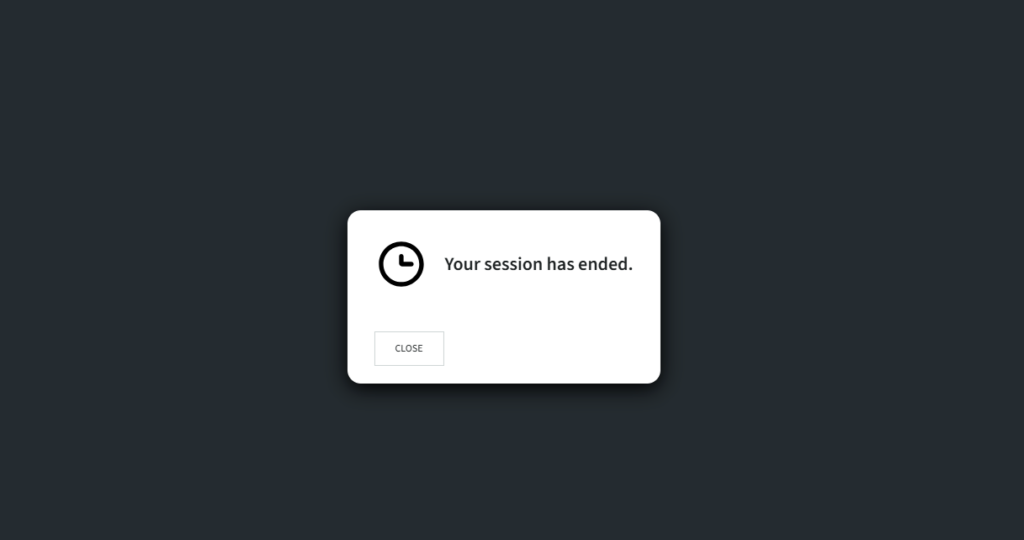
4. A new interface appears when you start a Cross Browsing Live session (see screenshot above)
- Starting Opera 129.0
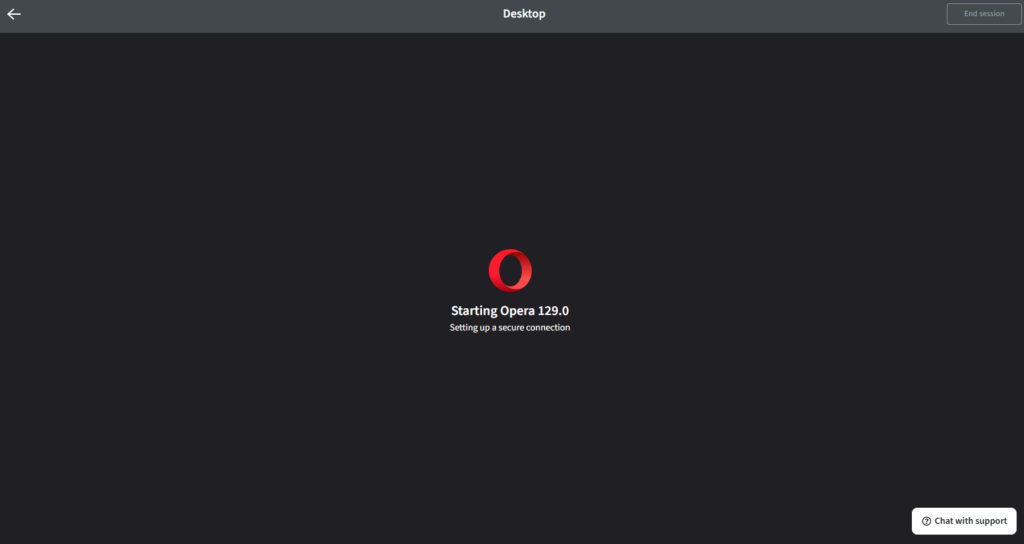
- Access the browser live view to monitor your session in real time.