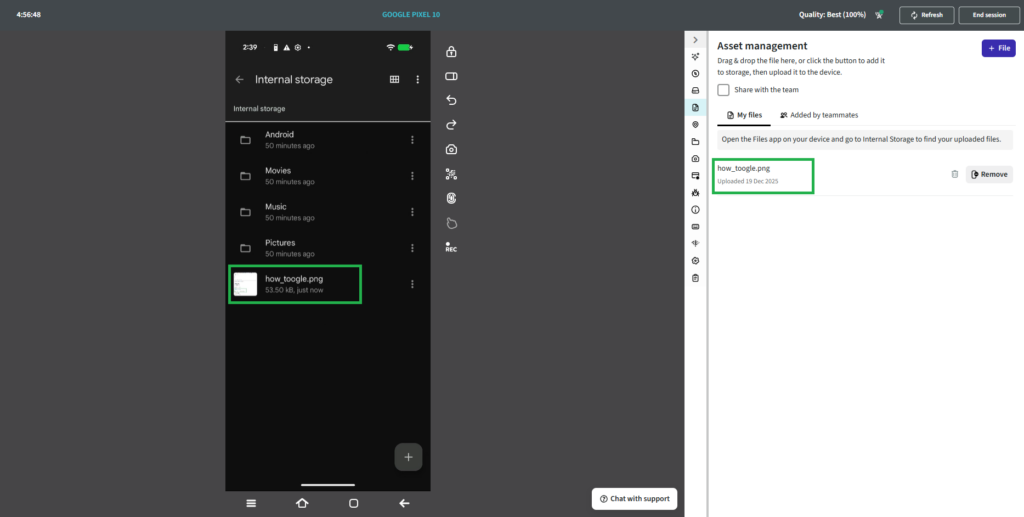
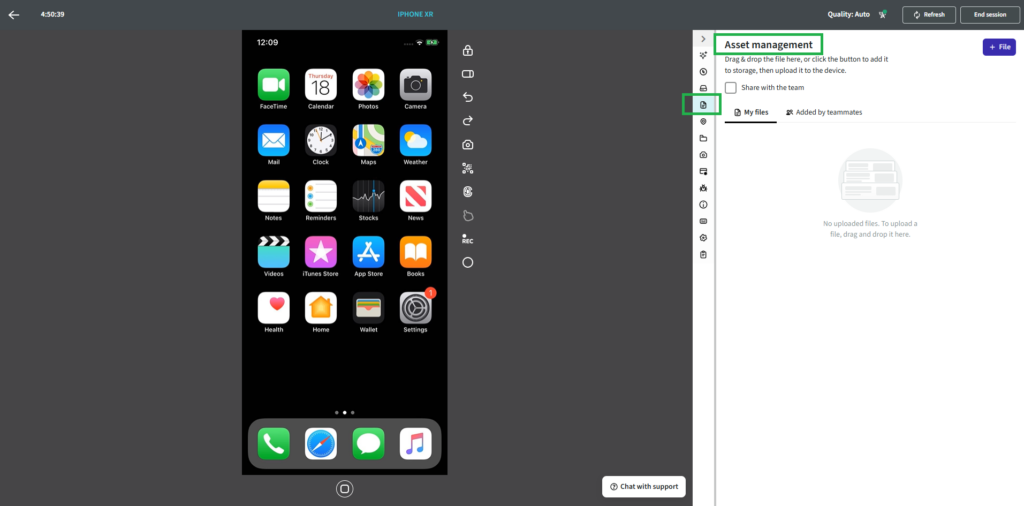
Asset management
Upload files and screenshots to your devices with ease.
Removing files is now just a click away.
Drag & drop the file here, or click the button to add it to storage, then upload it to the device.
Important note:
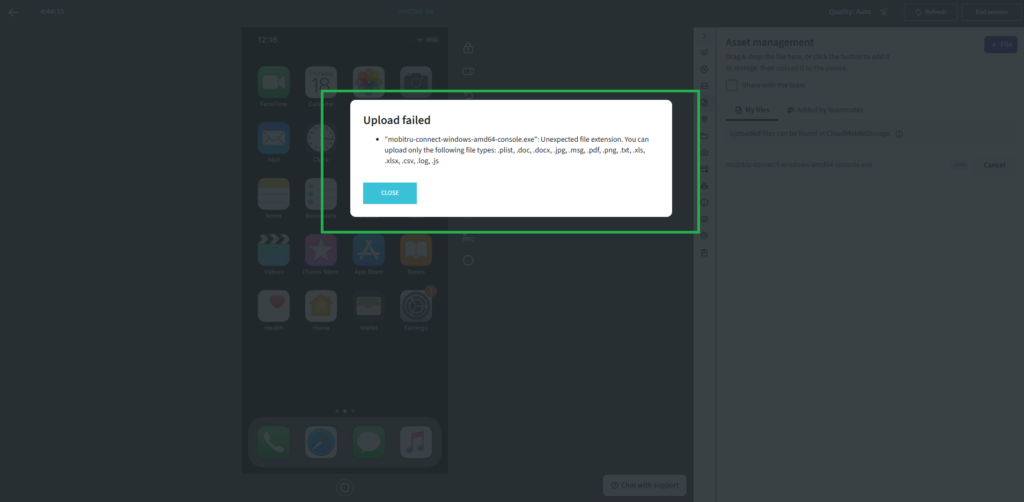
You can upload only the following file types: .plist, .doc, .docx, .jpg, .msg, .pdf, .png, .txt, .xls, .xlsx, .csv, .log, .js
In case you will upload an unexpected file you will be able to see the following modal below:
Note: The process for locating uploaded files differs between iOS and Android devices.
Please follow the steps below according to your device type.
iOS Devices:
After you upload at least one file, a folder named CloudMobileStorage will appear on your device.
To find your uploaded files:
1.Open the Files app.
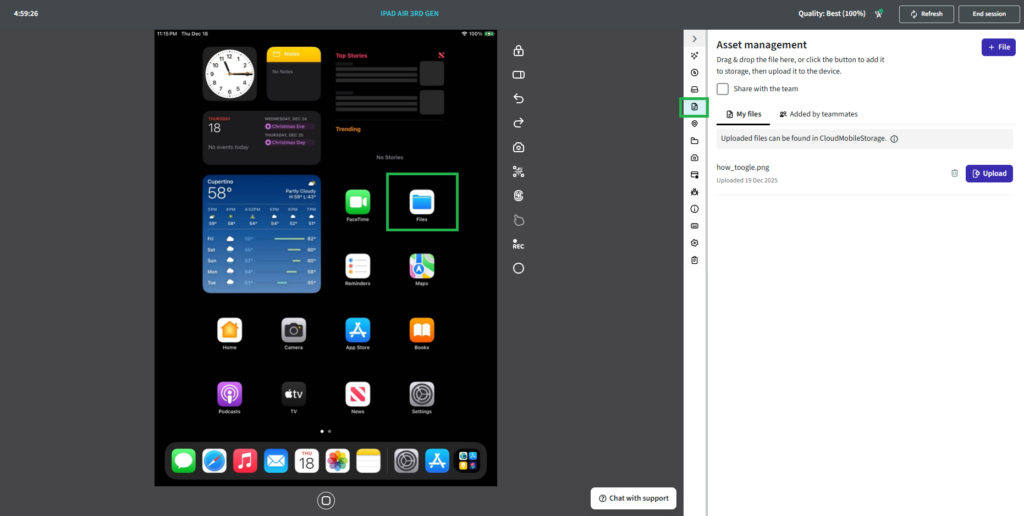
2. Tap Browse & Select CloudMobileStorage.
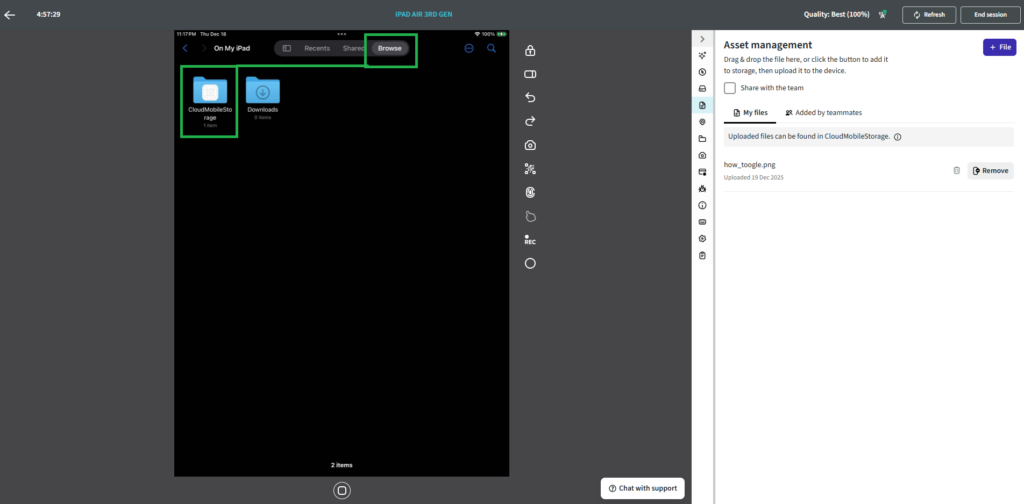
3. Your uploaded file will be visible here, as shown in the screenshot below.
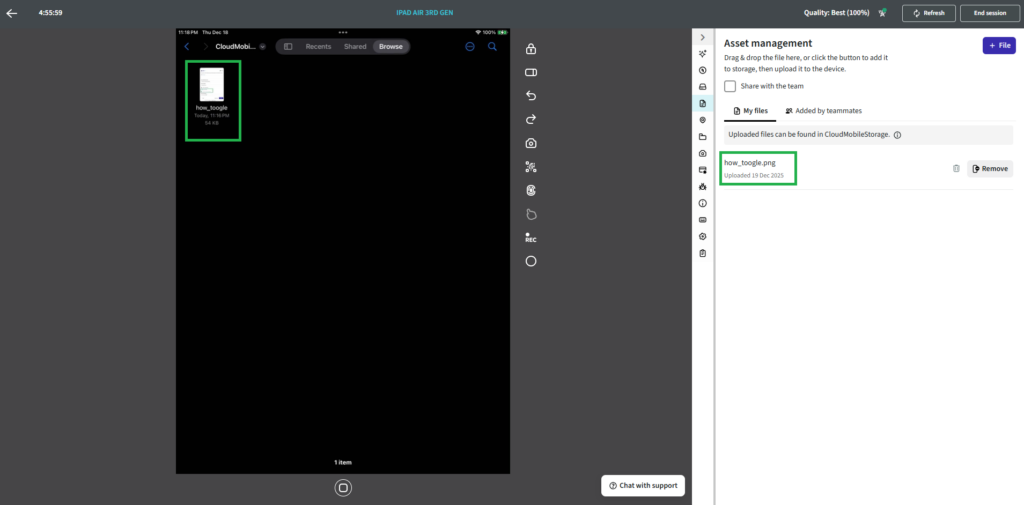
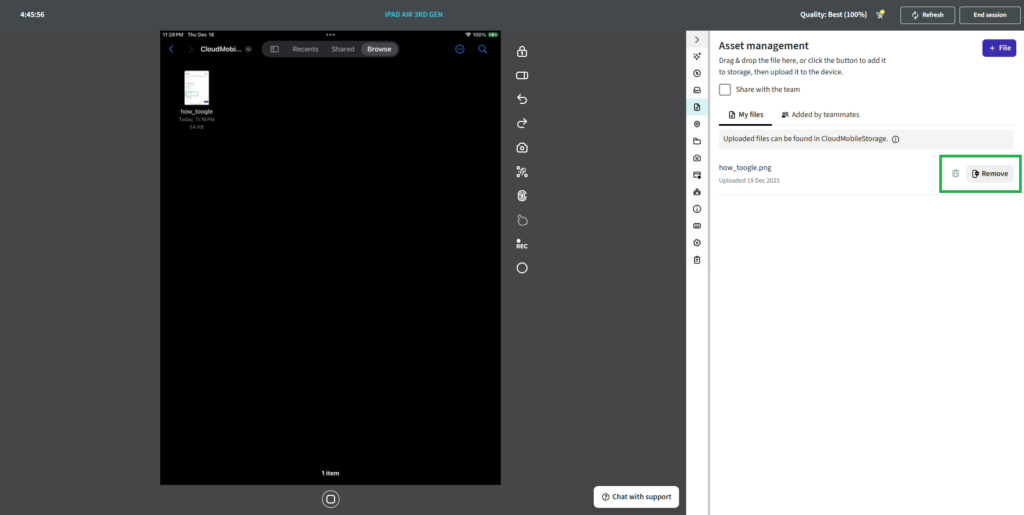
4. If you want to remove your uploaded file, press the Remove button.
Android Devices:
To access your uploaded files:
- Open the Files app on your device.
- Navigate to Internal Storage.
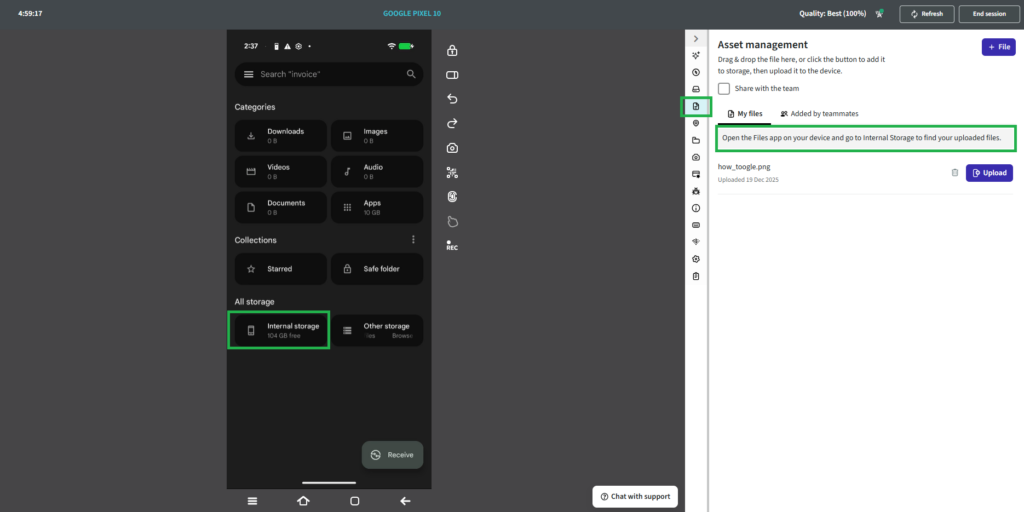
3. Locate your uploaded files in this section.