
Live debugging
Mobitru provides a powerful Live Debugging feature that enables users to efficiently monitor and troubleshoot automated tests across multiple browsers in real time.
With this feature, you have:
- Review Test Execution in Real Time: watch your tests as they run live on different browsers, allowing for immediate feedback and faster issue detection
- Interactive Debugging: take manual control of the browser session to interact with the application, explore and manipulate the DOM structure, and validate UI elements directly
- Access Browser DevTools: open integrated DevTools to inspect network traffic, review JavaScript console logs, and analyze errors for comprehensive debugging
How It Works
Prerequisite:
- Start any of the Selenium or Playwright tests.
No special configuration is needed to use live debugging.
Simply start your Selenium or Playwright tests, and an ongoing session will automatically appear in the Desktop tab on Mobitru.
More details can be found here. - Enter the autotest browser session
Navigate to the ongoing session in the Desktop tab and click the Resume button.
You’ll briefly see the “Setting up a secure connection” screen:
- After which, the session will be activated:

Perform the manual interactions
Every session supports performing common manual actions, which include:
- Clicks and entering data.

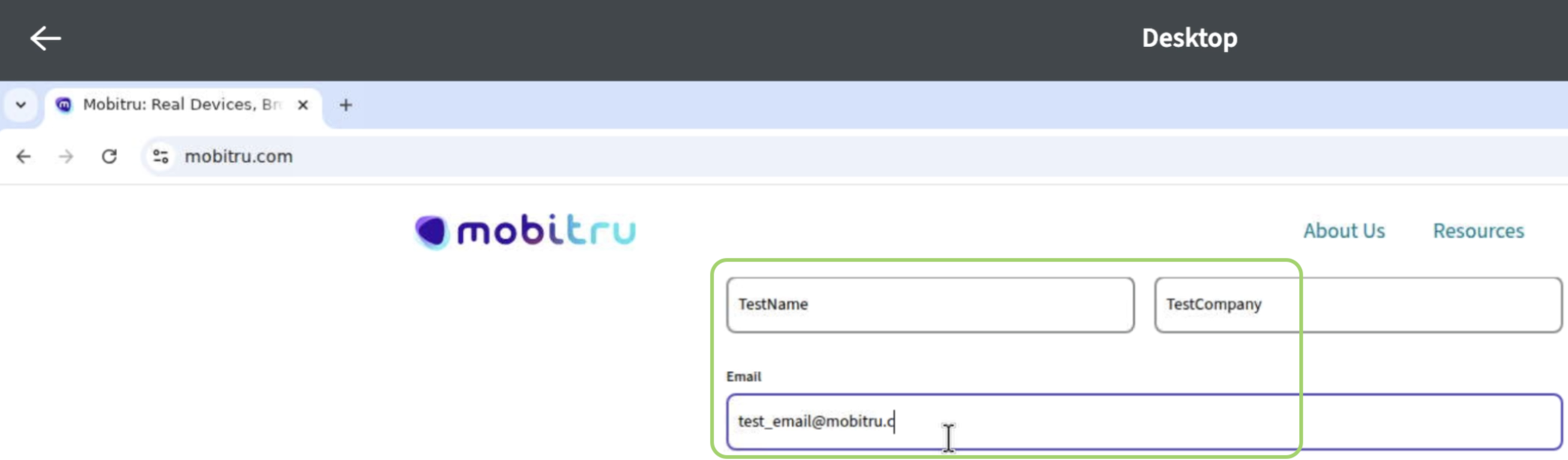
- Copy and paste within a session window

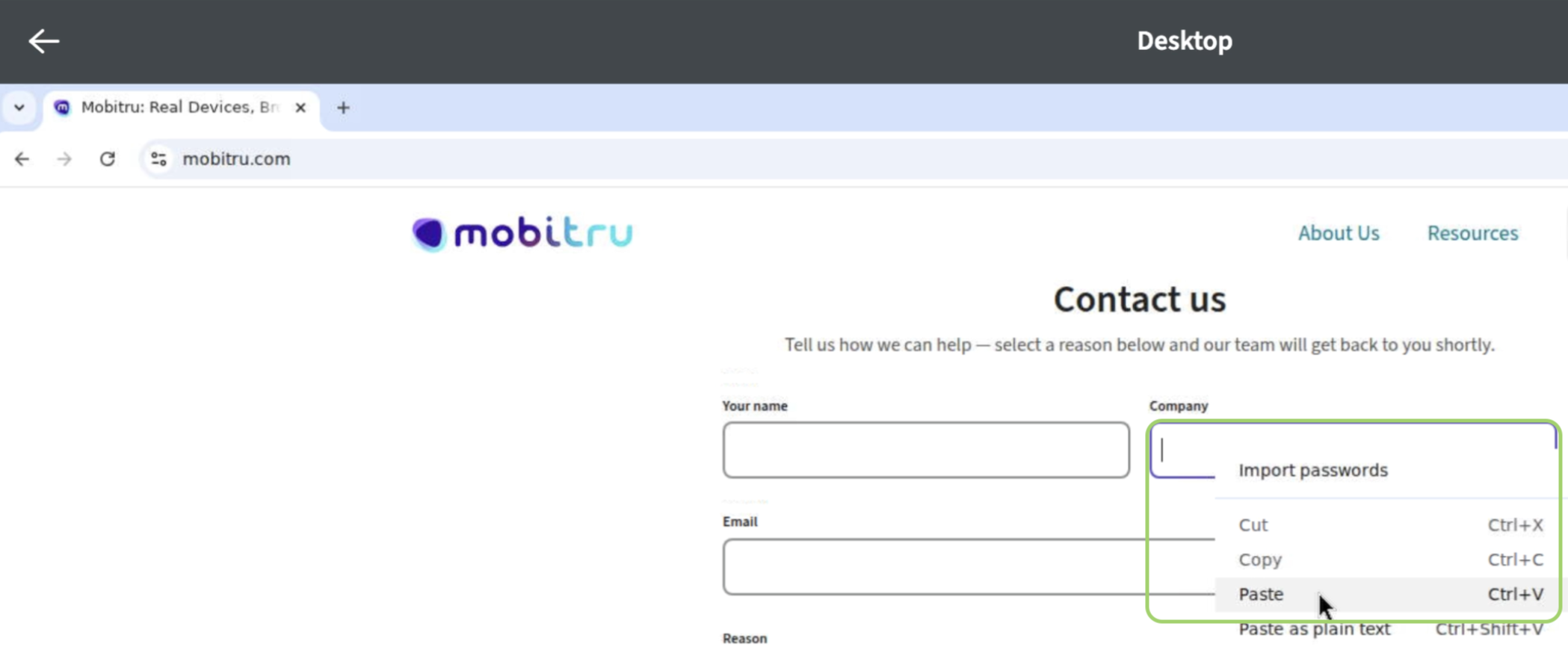
- Open and close new tabs or browser windows
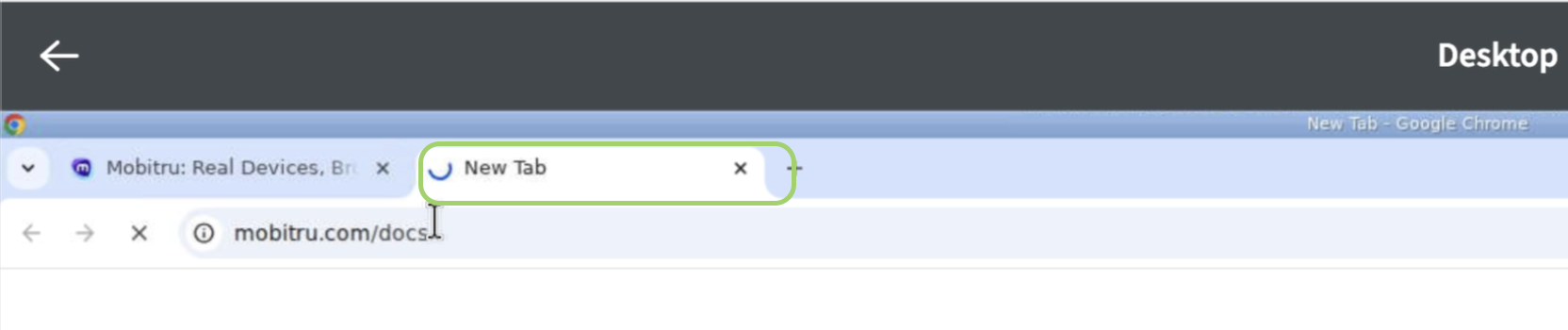
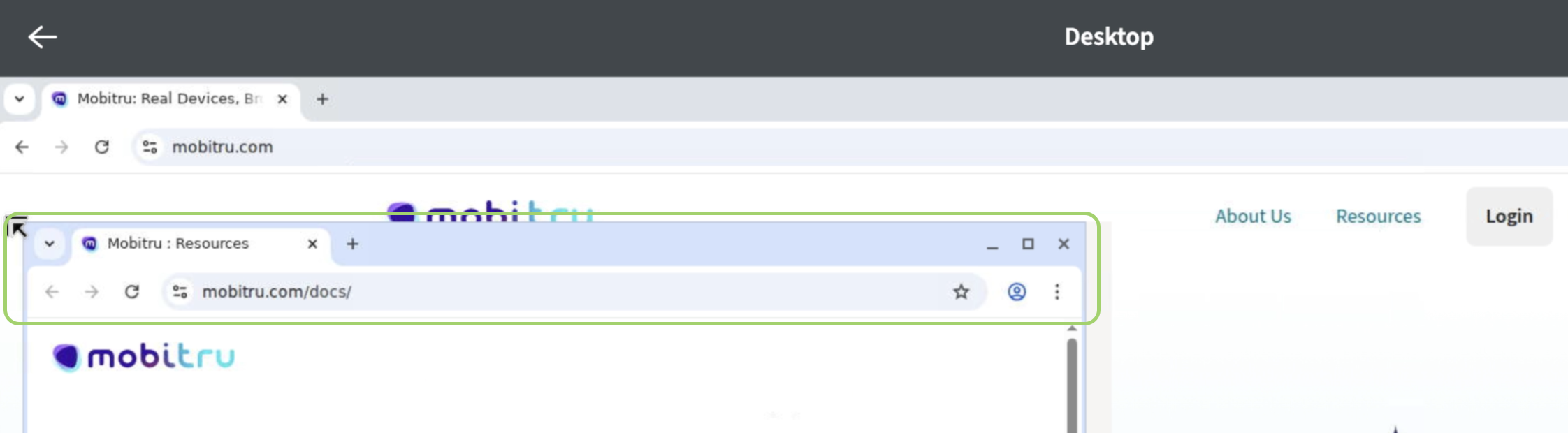
Review the DOM structure
Every browser has developer tools included, which can be used for accessing the DOM structure.
 | Safari-specific session configuration: You need to add the safari:automaticInspection capability to access the developer tools. More details can be found here. |
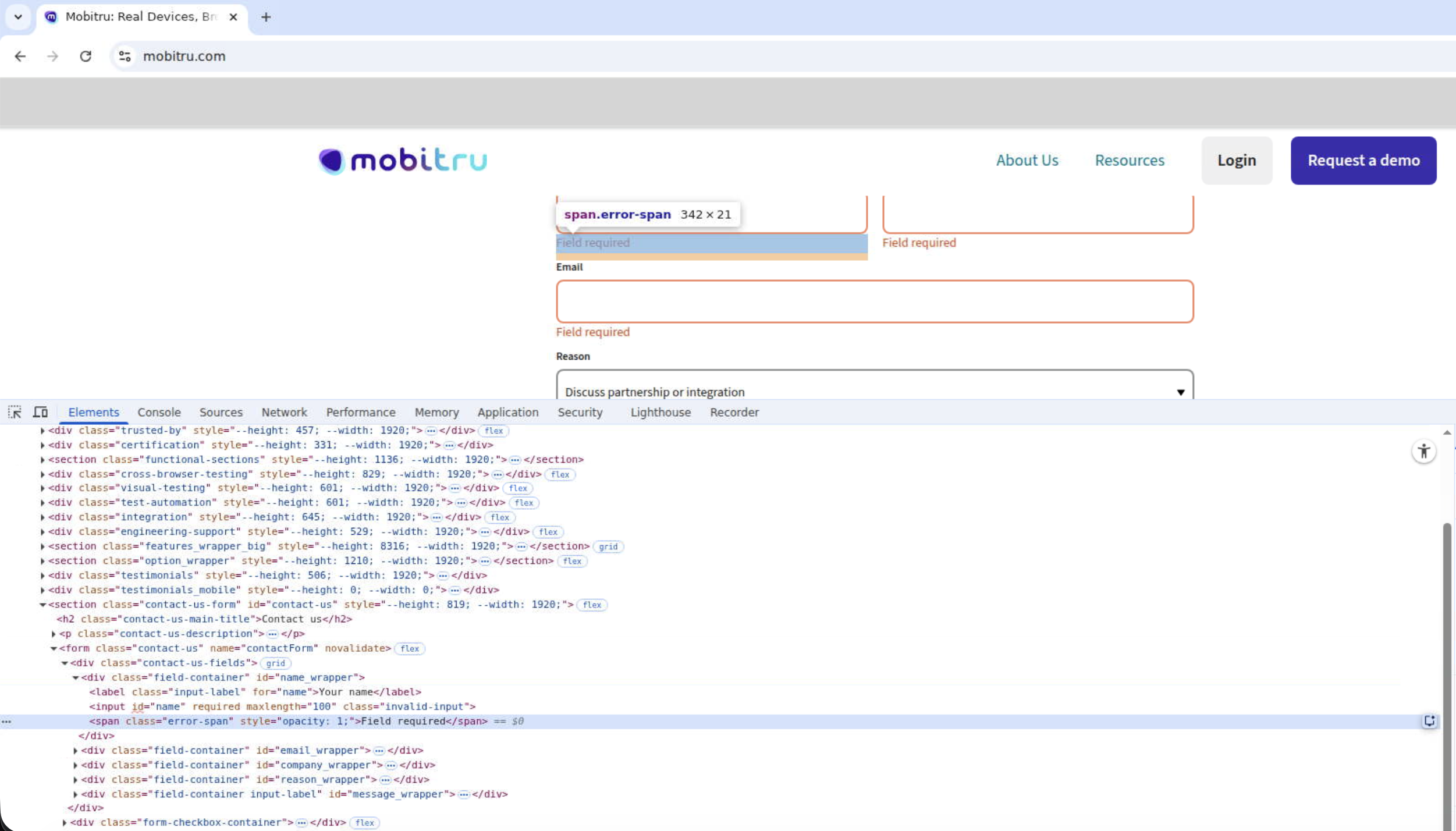
Check the network traffic and JavaScript console
In the developer tools, it’s possible to review the network traffic:
Also, the same is for the JavaScript console: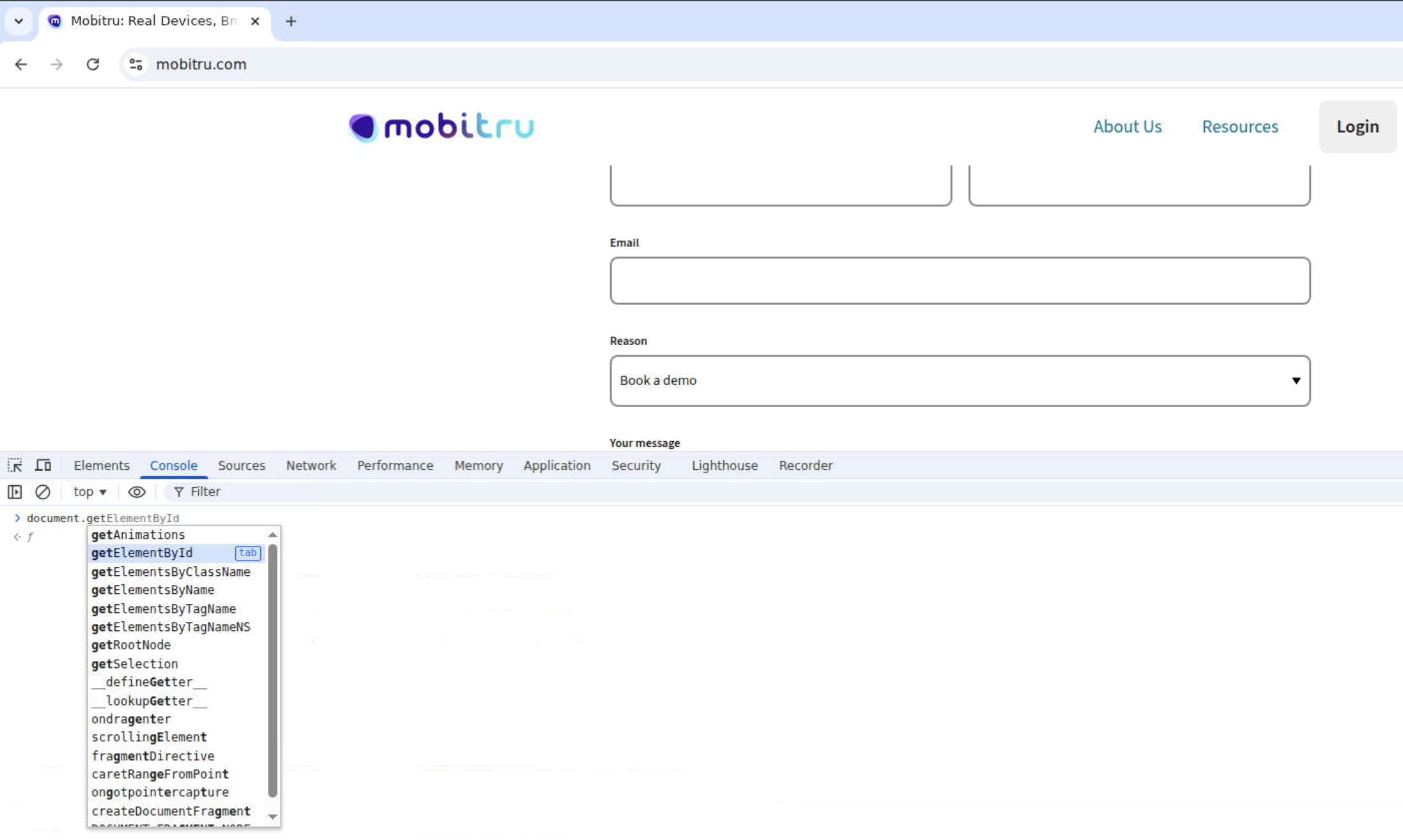
Switching between different browser sessions
If your subscription plan includes multiple browser sessions, you can easily switch between them while tests are executing
- Clicks the Back button from the current session:
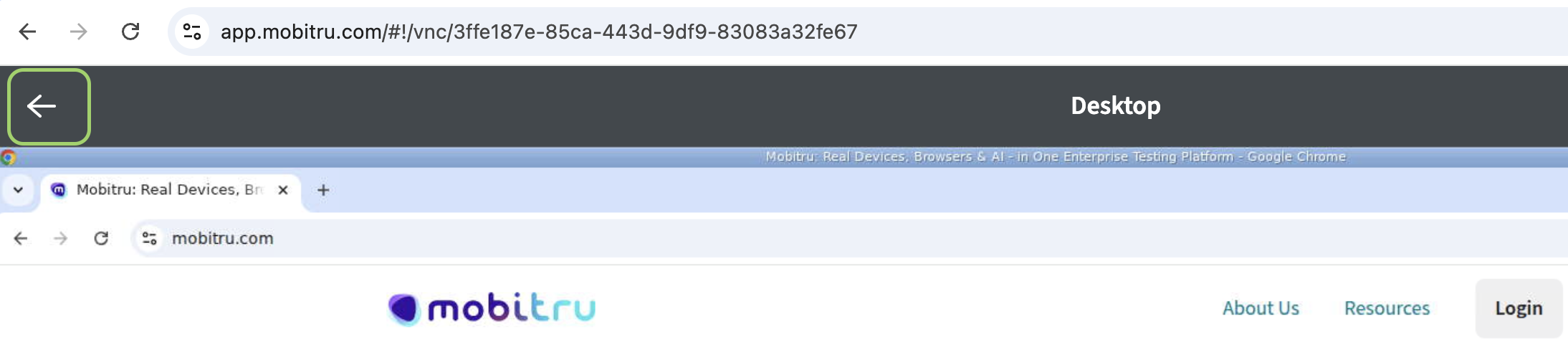
- Select another session in the list:

- Wait for the session to be activated:
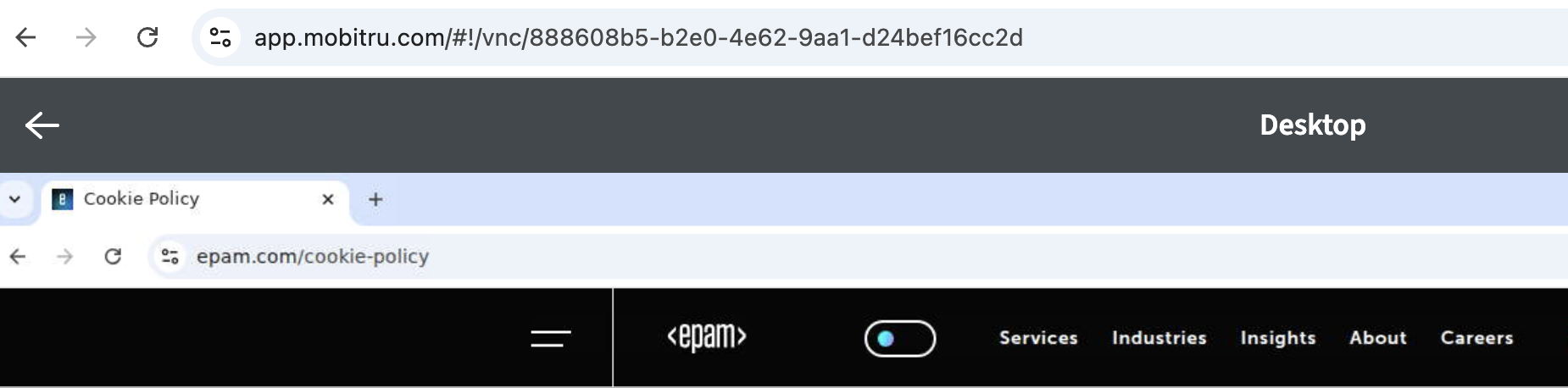
Limitations
At this time, the following actions are not yet supported:
- Drag and drop from the local machine.
- File transfer
- Using the local clipboard