
Cursor IDE
1. Login in Cursor
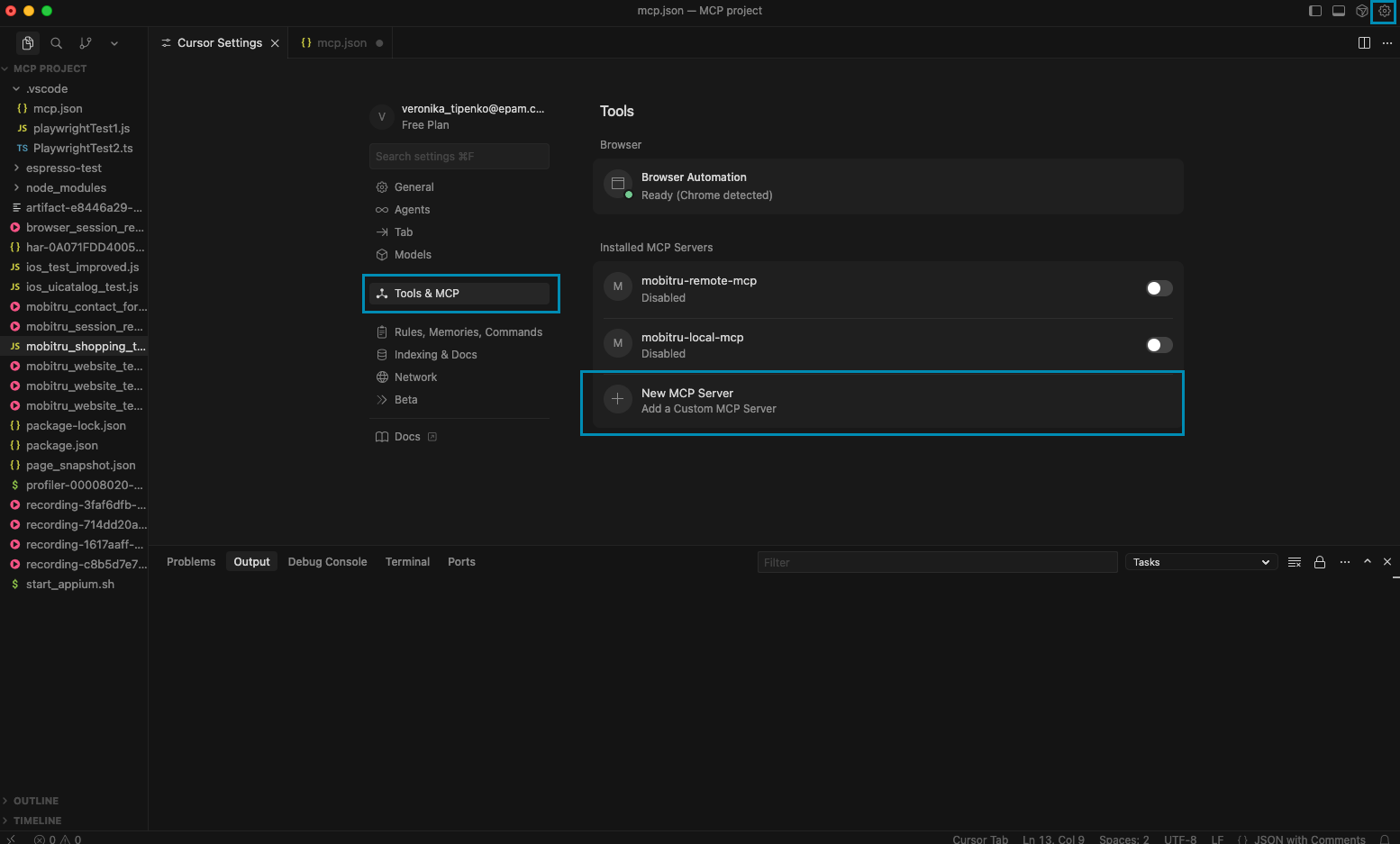
2. Open Settings
3. Select “MCP” section
4. Click “New MCP Server”
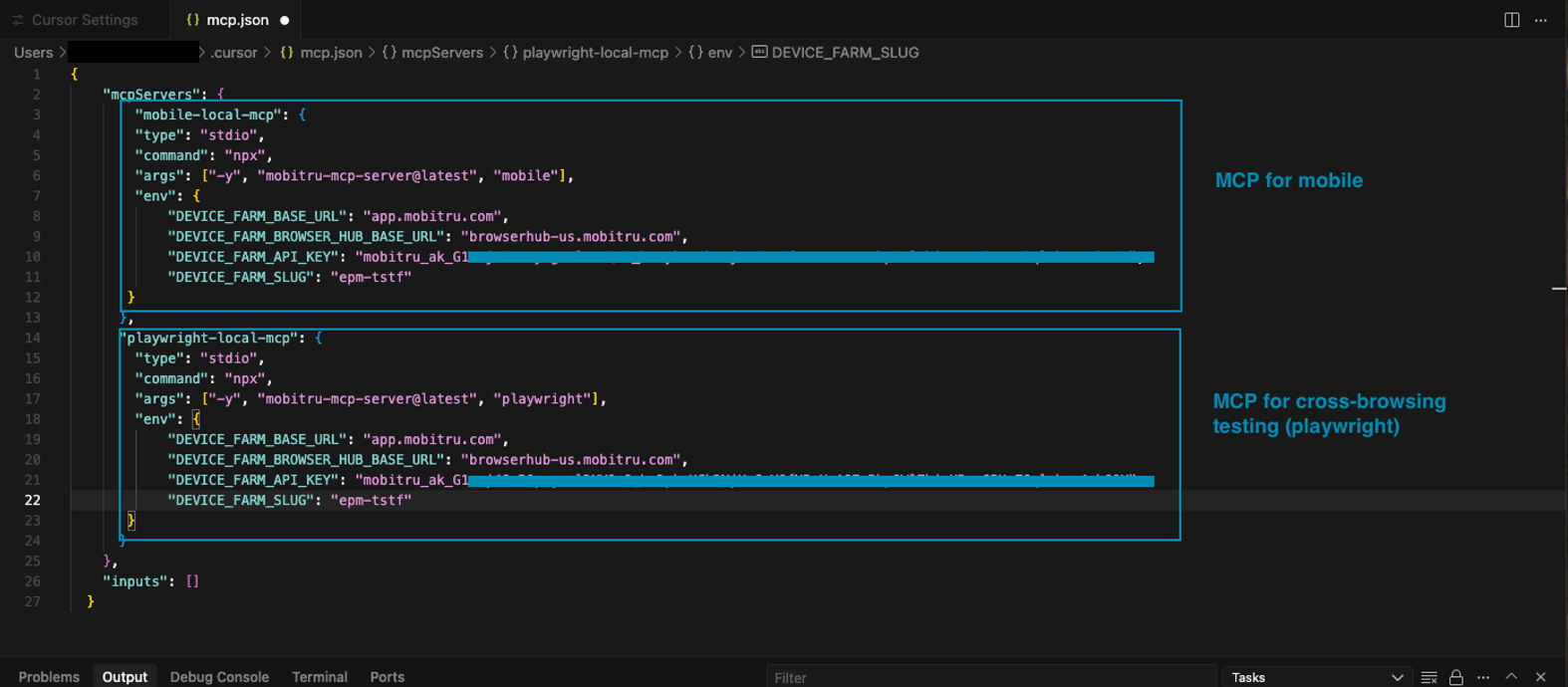
5. Fill in the required fields in the Config file.
 | Note: Sometimes the agent in Cursor may not detect all tools. If this happens, stop the server and restart it. |
MCP for mobile:
{
    "mcpServers": {
        "mobile-local-mcp": {
        "type": "stdio",
        "command": "npx",
        "args": ["-y", "mobitru-mcp-server@latest", "mobile"],
        "env": {
            "DEVICE_FARM_BASE_URL": "app.mobitru.com",
            "DEVICE_FARM_BROWSER_HUB_BASE_URL": "browserhub-us.mobitru.com",
            "DEVICE_FARM_API_KEY": "<ACCESS_KEY>",
            "DEVICE_FARM_SLUG": "<TEAM_CODE>"
       }
      }
    },
    "inputs": []
  }
MCP for cross-browsing testing (Playwright):
{
    "mcpServers": {
        "playwright-local-mcp": {
        "type": "stdio",
        "command": "npx",
        "args": ["-y", "mobitru-mcp-server@latest", "playwright"],
        "env": {
            "DEVICE_FARM_BASE_URL": "app.mobitru.com",
            "DEVICE_FARM_BROWSER_HUB_BASE_URL": "browserhub-us.mobitru.com",
            "DEVICE_FARM_API_KEY": "<ACCESS_KEY>",
            "DEVICE_FARM_SLUG": "<TEAM_CODE>"
       }
      }
    },
    "inputs": []
} | Notes: DEVICE_FARM_SLUG – your billing unit name DEVICE_FARM_API_KEY – your API key args: [“-y”, “mobitru-mcp-server@latest”, “mobile”] – for mobile MCP server args: [“-y”, “mobitru-mcp-server@latest”, “playwright”] – for cross-browser MCP server |